How to Enable or Disable Run at Startup for Xbox app in Windows 11

This tutorial will show you how to turn the Xbox app on or off so it starts when you sign in to Windows 11.
The Xbox app for Windows lets you play and manage your PC games on your device. Whether you have Xbox Game Pass or bought games from the Microsoft Store, you can find them all in this app.
Why do this? If you use the Xbox app often, having it start automatically when you log in saves you time.
What happens? The Xbox app will open by itself each time you start your computer and sign in.
Note: These settings only apply to your user account, not other users on the computer.
References:
Download the Xbox PC app to play new games, see what your friends are playing, and chat with them across PC, mobile, and console.
Option One: Use Xbox App Settings
Turn Xbox App On or Off at Startup
You can enable or disable the Xbox app at startup directly through the Xbox app settings by navigating to Settings, clicking App, and toggling the “Launch Xbox when I start my computer” option, which is turned off by default.
- Open the Xbox app.
- Click the Profile button and then click Settings.
- Click App in the left side menu.
- Under Startup settings, turn on or off “Launch Xbox when I start my computer.” The default is off.
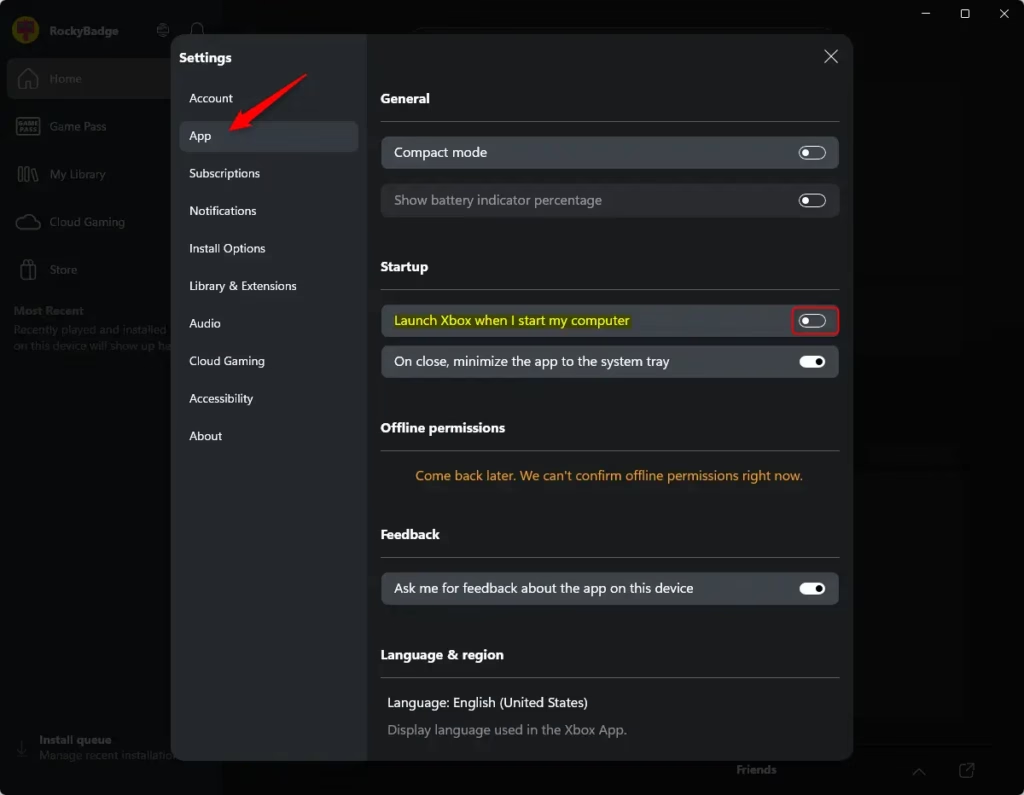
Close Settings when done.
Option Two: Use Registry Editor
Turn On or Off Run Xbox App at Startup Using the Registry
FLAG: Admin privileges required.
Open Windows Terminal and run the command below. Or open Registry Editor and browse to the registry key to edit the value.
Turn On Run Xbox app at Startup:
reg add "HKEY_CURRENT_USER\Software\Classes\Local Settings\Software\Microsoft\Windows\CurrentVersion\AppModel\SystemAppData\Microsoft.GamingApp_8wekyb3d8bbwe\Xbox.App.Tasks.FullTrustComponent" /v State /t REG_DWORD /d 2 /f
Turn Off Run Xbox app at Startup (default):
reg add "HKEY_CURRENT_USER\Software\Classes\Local Settings\Software\Microsoft\Windows\CurrentVersion\AppModel\SystemAppData\Microsoft.GamingApp_8wekyb3d8bbwe\Xbox.App.Tasks.FullTrustComponent" /v State /t REG_DWORD /d 0 /f
Option Three: Use Windows Settings
Enable or Disable Run Xbox App at Startup in Settings
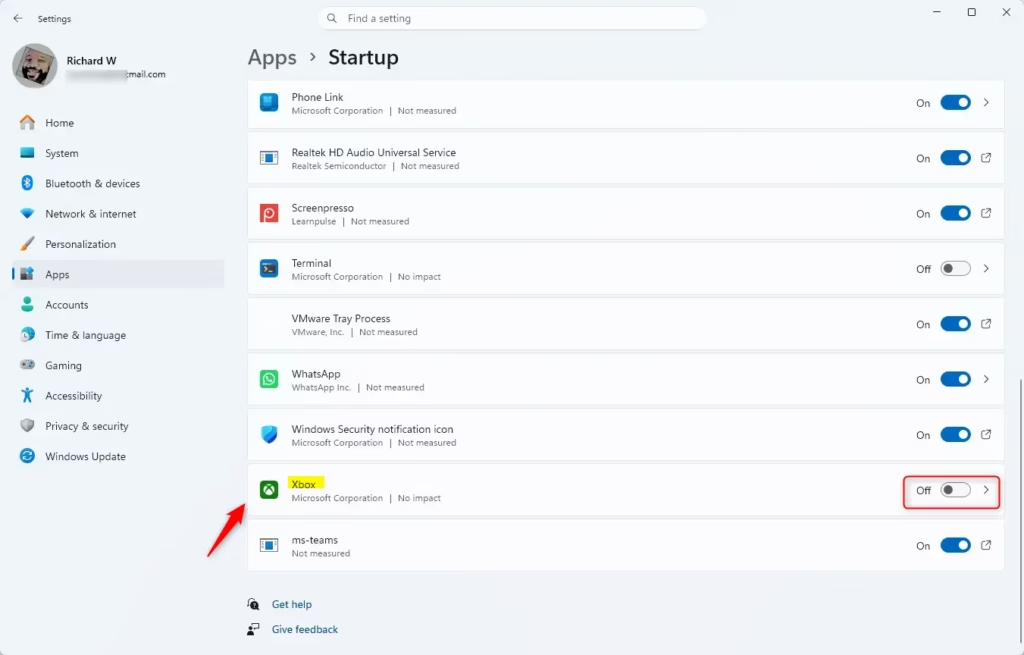
- Open Settings by pressing Win+I.
- Click on Apps on the left side, and click on Startup on the right side.
- Tuggle the button to turn On or Off the Xbox app.
- Open Task Manager by pressing .GENERIC
Ctrl+Shift+Esc - Click the Startup apps tab on the left side of Task Manager.
- Select the Xbox app.
- Click the Enable or Disable button on the toolbar for what you want.
Option Four: Use Task Manager
Enable or Disable Run Xbox App at Startup in Task Manager
What happens: If you disable Xbox here, the “Launch Xbox when I start my computer” setting in Option One will be disabled and grayed out. The registry setting will also change to:
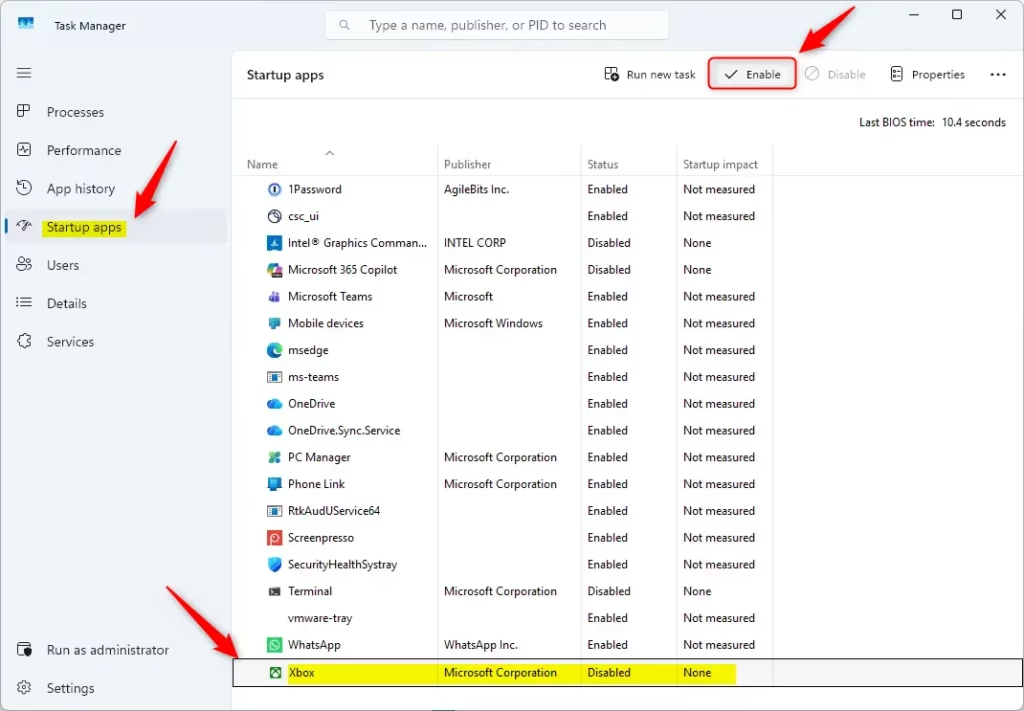
Close Task Manager when done.
Summary
You now know how to turn the Xbox app startup feature on or off in Windows 11. You have four different ways to do this: through Xbox app settings, the Windows Registry, Windows Settings, or Task Manager. Pick whichever method is easiest for you. Remember that these changes only affect your user account. The Xbox app will start automatically each time you sign in if you enable this feature, or it will not start unless you open it manually if you disable it.
How do I stop the Xbox app from opening on startup?
To stop the Xbox app from opening automatically, open the Xbox app and click on your profile icon to select Settings. Navigate to the General tab and toggle off the option labeled "Launch Xbox when I start my computer." Alternatively, you can disable it via the Windows Task Manager Startup apps tab.
How to fix launching the Xbox app?
If the Xbox app fails to launch, try repairing or resetting it through Windows Settings. Go to Apps > Installed apps, find the Xbox app, click the three dots, and select Advanced options. Use the Repair button first; if that fails, use the Reset button to clear the app's data and cache.
How to fix error code 0x8000000d?
Error code 0x8000000d in the Xbox app usually indicates corrupted installation files or issues with the Microsoft Store. Fix this by running the Windows Store Apps troubleshooter in Settings. Additionally, ensure your Windows is fully updated and try resetting the Microsoft Store cache by running the 'wsreset.exe' command in the Run dialog.
How do I stop Microsoft apps from opening on startup?
To stop Microsoft apps from launching at startup, press Ctrl + Shift + Esc to open Task Manager. Navigate to the Startup apps tab, locate the specific app, right-click it, and select Disable. You can also check individual app settings within each application to toggle off automatic startup behavior for your user account.
Was this guide helpful?



Leave a Reply Cancel reply